वर्कफ़्लो डीबगिंग
AI-सहायता प्राप्त अनुवाद - अधिक जानें और सुधार सुझाएं
डीबगिंग एक महत्वपूर्ण कौशल है जो तुम्हें घंटों की परेशानी से बचा सकती है और तुम्हें एक बेहतर Nextflow डेवलपर बनने में मदद कर सकती है। अपने करियर में, खासकर जब तुम शुरुआत कर रहे हो, वर्कफ़्लो बनाते और बनाए रखते समय तुम्हें बग्स का सामना करना पड़ेगा। व्यवस्थित डीबगिंग तरीके सीखने से तुम समस्याओं को जल्दी पहचान और हल कर पाओगे।
सीखने के लक्ष्य
इस side quest में, हम Nextflow वर्कफ़्लो के लिए व्यवस्थित डीबगिंग तकनीकें खोजेंगे:
- Syntax error डीबगिंग: IDE फ़ीचर्स और Nextflow error messages का प्रभावी उपयोग
- Channel डीबगिंग: डेटा फ़्लो समस्याओं और channel structure की समस्याओं का निदान
- Process डीबगिंग: execution failures और resource समस्याओं की जांच
- बिल्ट-इन डीबगिंग टूल्स: Nextflow के preview mode, stub running, और work directories का उपयोग
- व्यवस्थित तरीके: कुशल डीबगिंग के लिए चार-चरण की पद्धति
अंत में, तुम्हारे पास एक मजबूत डीबगिंग पद्धति होगी जो निराशाजनक error messages को समाधान के स्पष्ट रोडमैप में बदल देगी।
पूर्वापेक्षाएँ
इस side quest को शुरू करने से पहले, तुम्हें:
- Hello Nextflow ट्यूटोरियल या समकक्ष शुरुआती कोर्स पूरा करना चाहिए।
- बुनियादी Nextflow अवधारणाओं और तंत्रों (processes, channels, operators) का उपयोग करने में सहज होना चाहिए।
वैकल्पिक: हम पहले IDE Features for Nextflow Development side quest पूरा करने की सलाह देते हैं। यह डीबगिंग को सपोर्ट करने वाले IDE फ़ीचर्स (syntax highlighting, error detection, आदि) का व्यापक कवरेज देता है, जिनका हम यहाँ भरपूर उपयोग करेंगे।
0. शुरू करना
Training codespace खोलो
अगर तुमने अभी तक नहीं किया है, तो Environment Setup में बताए अनुसार training environment खोलना सुनिश्चित करो।

प्रोजेक्ट डायरेक्टरी में जाओ
चलो उस डायरेक्टरी में जाते हैं जहाँ इस ट्यूटोरियल की फ़ाइलें हैं।
तुम VSCode को इस डायरेक्टरी पर फ़ोकस करने के लिए सेट कर सकते हो:
सामग्री की समीक्षा करो
तुम्हें विभिन्न प्रकार के बग्स वाले example वर्कफ़्लो का एक सेट मिलेगा जिनका हम अभ्यास के लिए उपयोग करेंगे:
डायरेक्टरी सामग्री
.
├── bad_bash_var.nf
├── bad_channel_shape.nf
├── bad_channel_shape_viewed_debug.nf
├── bad_channel_shape_viewed.nf
├── bad_number_inputs.nf
├── badpractice_syntax.nf
├── bad_resources.nf
├── bad_syntax.nf
├── buggy_workflow.nf
├── data
│   ├── sample_001.fastq.gz
│   ├── sample_002.fastq.gz
│   ├── sample_003.fastq.gz
│   ├── sample_004.fastq.gz
│   ├── sample_005.fastq.gz
│   └── sample_data.csv
├── exhausted.nf
├── invalid_process.nf
├── missing_output.nf
├── missing_software.nf
├── missing_software_with_stub.nf
├── nextflow.config
└── no_such_var.nf
ये फ़ाइलें उन सामान्य डीबगिंग परिदृश्यों को दर्शाती हैं जो तुम्हें वास्तविक विकास में मिलेंगे।
असाइनमेंट की समीक्षा करो
तुम्हारी चुनौती है कि प्रत्येक वर्कफ़्लो चलाओ, error(s) पहचानो, और उन्हें ठीक करो।
प्रत्येक buggy वर्कफ़्लो के लिए:
- वर्कफ़्लो चलाओ और error देखो
- Error message का विश्लेषण करो: Nextflow तुम्हें क्या बता रहा है?
- दिए गए संकेतों का उपयोग करके कोड में समस्या ढूंढो
- बग ठीक करो और सत्यापित करो कि तुम्हारा समाधान काम करता है
- अगले सेक्शन पर जाने से पहले फ़ाइल रीसेट करो (
git checkout <filename>का उपयोग करो)
अभ्यास सरल syntax errors से शुरू होकर अधिक सूक्ष्म runtime समस्याओं तक बढ़ते हैं। समाधान inline चर्चा किए गए हैं, लेकिन आगे पढ़ने से पहले प्रत्येक को खुद हल करने की कोशिश करो।
तैयारी की जाँच सूची
क्या तुम शुरू करने के लिए तैयार हो?
- मैं इस कोर्स के लक्ष्य और इसकी पूर्वापेक्षाओं को समझता/समझती हूँ
- मेरा codespace चल रहा है
- मैंने अपनी working directory उचित रूप से सेट की है
- मैं असाइनमेंट समझता/समझती हूँ
अगर तुम सभी बॉक्स चेक कर सकते हो, तो तुम जाने के लिए तैयार हो।
1. Syntax Errors
Syntax errors सबसे सामान्य प्रकार की errors हैं जो तुम Nextflow कोड लिखते समय पाओगे। ये तब होती हैं जब कोड Nextflow DSL के अपेक्षित syntax नियमों के अनुरूप नहीं होता। ये errors तुम्हारे वर्कफ़्लो को बिल्कुल भी चलने से रोकती हैं, इसलिए यह सीखना महत्वपूर्ण है कि उन्हें जल्दी कैसे पहचानें और ठीक करें।
1.1. Missing braces
सबसे सामान्य syntax errors में से एक, और कभी-कभी डीबग करने के लिए अधिक जटिल, missing या mismatched brackets है।
चलो एक व्यावहारिक उदाहरण से शुरू करते हैं।
पाइपलाइन चलाओ
कमांड आउटपुट
Syntax error messages के मुख्य तत्व:
- फ़ाइल और स्थान: दिखाता है कि कौन सी फ़ाइल और line/column में error है (
bad_syntax.nf:24:1) - Error विवरण: बताता है कि parser को क्या मिला जो उसे अपेक्षित नहीं था (
Unexpected input: '<EOF>') - EOF संकेतक:
<EOF>(End Of File) message इंगित करता है कि parser फ़ाइल के अंत तक पहुँच गया जबकि अभी भी अधिक content की अपेक्षा थी - unclosed braces का एक क्लासिक संकेत
कोड जाँचो
अब, bad_syntax.nf की जाँच करते हैं यह समझने के लिए कि error क्या कारण है:
इस उदाहरण के लिए हमने तुम्हें एक comment छोड़ा है जो दिखाता है कि error कहाँ है। Nextflow VSCode extension भी तुम्हें कुछ संकेत दे रहा होगा, mismatched brace को लाल रंग में दिखाकर और फ़ाइल के समय से पहले समाप्त होने को हाइलाइट करके:
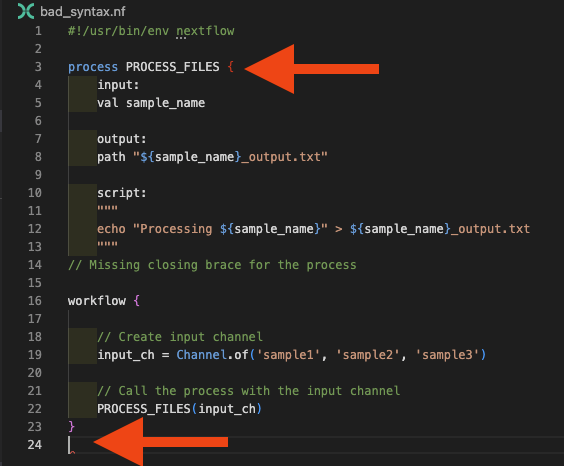
Bracket errors के लिए डीबगिंग रणनीति:
- VS Code के bracket matching का उपयोग करो (cursor को bracket के बगल में रखो)
- bracket-संबंधित messages के लिए Problems panel जाँचो
- सुनिश्चित करो कि प्रत्येक opening
{का एक corresponding closing}है
कोड ठीक करो
comment को missing closing brace से बदलो:
पाइपलाइन चलाओ
अब वर्कफ़्लो फिर से चलाओ यह पुष्टि करने के लिए कि यह काम करता है:
कमांड आउटपुट
1.2. गलत process keywords या directives का उपयोग
एक और सामान्य syntax error invalid process definition है। यह तब हो सकता है जब तुम आवश्यक blocks को define करना भूल जाते हो या process definition में गलत directives का उपयोग करते हो।
पाइपलाइन चलाओ
कमांड आउटपुट
N E X T F L O W   ~  version 25.10.2

Launching `invalid_process.nf` [nasty_jepsen] DSL2 - revision: da9758d614

Error invalid_process.nf:3:1: Invalid process definition -- check for missing or out-of-order section labels
│   3 | process PROCESS_FILES {
│     | ^^^^^^^^^^^^^^^^^^^^^^^
│   4 |     inputs:
│   5 |     val sample_name
│   6 |
╰   7 |     output:

ERROR ~ Script compilation failed

 -- Check '.nextflow.log' file for details
कोड जाँचो
Error "Invalid process definition" इंगित करती है और समस्या के आसपास का context दिखाती है। Lines 3-7 को देखने पर, हम line 4 पर inputs: देख सकते हैं, जो समस्या है। चलो invalid_process.nf की जाँच करते हैं:
Error context में line 4 को देखने पर, हम समस्या पहचान सकते हैं: हम सही input directive के बजाय inputs का उपयोग कर रहे हैं। Nextflow VSCode extension भी इसे flag करेगा:
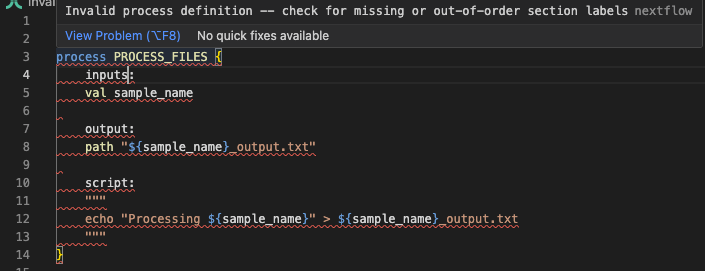
कोड ठीक करो
documentation का संदर्भ लेकर गलत keyword को सही से बदलो:
पाइपलाइन चलाओ
अब वर्कफ़्लो फिर से चलाओ यह पुष्टि करने के लिए कि यह काम करता है:
कमांड आउटपुट
1.3. गलत variable names का उपयोग
तुम्हारे script blocks में जो variable names उपयोग करते हो वे valid होने चाहिए, या तो inputs से derived या script से पहले insert किए गए Groovy कोड से। लेकिन जब तुम पाइपलाइन development की शुरुआत में complexity से जूझ रहे होते हो, तो variable naming में गलतियाँ करना आसान है, और Nextflow तुम्हें जल्दी बता देगा।
पाइपलाइन चलाओ
कमांड आउटपुट
N E X T F L O W   ~  version 25.10.2

Launching `no_such_var.nf` [gloomy_meninsky] DSL2 - revision: 0c4d3bc28c

Error no_such_var.nf:17:39: `undefined_var` is not defined
│  17 |     echo "Using undefined variable: ${undefined_var}" >> ${output_pref
╰     |                                       ^^^^^^^^^^^^^

ERROR ~ Script compilation failed

 -- Check '.nextflow.log' file for details
Error compile time पर पकड़ी जाती है और सीधे line 17 पर undefined variable की ओर इशारा करती है, एक caret के साथ जो बिल्कुल वहाँ इंगित करता है जहाँ समस्या है।
कोड जाँचो
चलो no_such_var.nf की जाँच करते हैं:
Error message इंगित करती है कि variable script template में पहचाना नहीं गया, और वहाँ तुम देख सकते हो - script block में ${undefined_var} का उपयोग किया गया है, लेकिन कहीं और define नहीं किया गया।
कोड ठीक करो
अगर तुम्हें 'No such variable' error मिलती है, तो तुम इसे variable define करके (input variable names सही करके या script से पहले Groovy कोड edit करके), या अगर इसकी जरूरत नहीं है तो script block से हटाकर ठीक कर सकते हो:
पाइपलाइन चलाओ
अब वर्कफ़्लो फिर से चलाओ यह पुष्टि करने के लिए कि यह काम करता है:
कमांड आउटपुट
1.4. Bash variables का गलत उपयोग
Nextflow में शुरुआत करते समय, Nextflow (Groovy) और Bash variables के बीच अंतर समझना मुश्किल हो सकता है। यह bad variable error का एक और रूप उत्पन्न कर सकता है जो script block की Bash content में variables का उपयोग करने की कोशिश करते समय दिखाई देता है।
पाइपलाइन चलाओ
कमांड आउटपुट
N E X T F L O W   ~  version 25.10.2

Launching `bad_bash_var.nf` [infallible_mandelbrot] DSL2 - revision: 0853c11080

Error bad_bash_var.nf:13:42: `prefix` is not defined
│  13 |     echo "Processing ${sample_name}" > ${prefix}.txt
╰     |                                          ^^^^^^

ERROR ~ Script compilation failed

 -- Check '.nextflow.log' file for details
कोड जाँचो
Error line 13 की ओर इशारा करती है जहाँ ${prefix} का उपयोग किया गया है। चलो bad_bash_var.nf की जाँच करते हैं यह देखने के लिए कि समस्या क्या है:
| bad_bash_var.nf | |
|---|---|
इस उदाहरण में, हम Bash में prefix variable define कर रहे हैं, लेकिन Nextflow process में $ syntax जो हमने इसे refer करने के लिए उपयोग किया (${prefix}) को Groovy variable के रूप में interpret किया जाता है, Bash के रूप में नहीं। Groovy context में variable exist नहीं करता, इसलिए हमें 'no such variable' error मिलती है।
कोड ठीक करो
अगर तुम Bash variable का उपयोग करना चाहते हो, तो तुम्हें dollar sign को इस तरह escape करना होगा:
| bad_bash_var.nf | |
|---|---|
यह Nextflow को इसे Bash variable के रूप में interpret करने के लिए कहता है।
पाइपलाइन चलाओ
अब वर्कफ़्लो फिर से चलाओ यह पुष्टि करने के लिए कि यह काम करता है:
कमांड आउटपुट
Groovy बनाम Bash Variables
String concatenation या prefix/suffix operations जैसे सरल variable manipulations के लिए, script block में Bash variables के बजाय script section में Groovy variables का उपयोग करना आमतौर पर अधिक readable होता है:
यह तरीका dollar signs escape करने की जरूरत से बचाता है और कोड को पढ़ने और maintain करने में आसान बनाता है।
1.5. Workflow Block के बाहर Statements
Nextflow VSCode extension code structure की उन समस्याओं को highlight करता है जो errors का कारण बनेंगी। एक सामान्य उदाहरण workflow {} block के बाहर channels define करना है - यह अब एक syntax error के रूप में enforce किया जाता है।
पाइपलाइन चलाओ
कमांड आउटपुट
N E X T F L O W   ~  version 25.10.2

Launching `badpractice_syntax.nf` [intergalactic_colden] DSL2 - revision: 5e4b291bde

Error badpractice_syntax.nf:3:1: Statements cannot be mixed with script declarations -- move statements into a process or workflow
│   3 | input_ch = channel.of('sample1', 'sample2', 'sample3')
╰     | ^^^^^^^^^^^^^^^^^^^^^^^^^^^^^^^^^^^^^^^^^^^^^^^^^^^^^^

ERROR ~ Script compilation failed

 -- Check '.nextflow.log' file for details
Error message स्पष्ट रूप से समस्या इंगित करती है: statements (जैसे channel definitions) को workflow या process block के बाहर script declarations के साथ mix नहीं किया जा सकता।
कोड जाँचो
चलो badpractice_syntax.nf की जाँच करते हैं यह देखने के लिए कि error क्या कारण है:
VSCode extension input_ch variable को workflow block के बाहर define किए जाने के रूप में भी highlight करेगा:
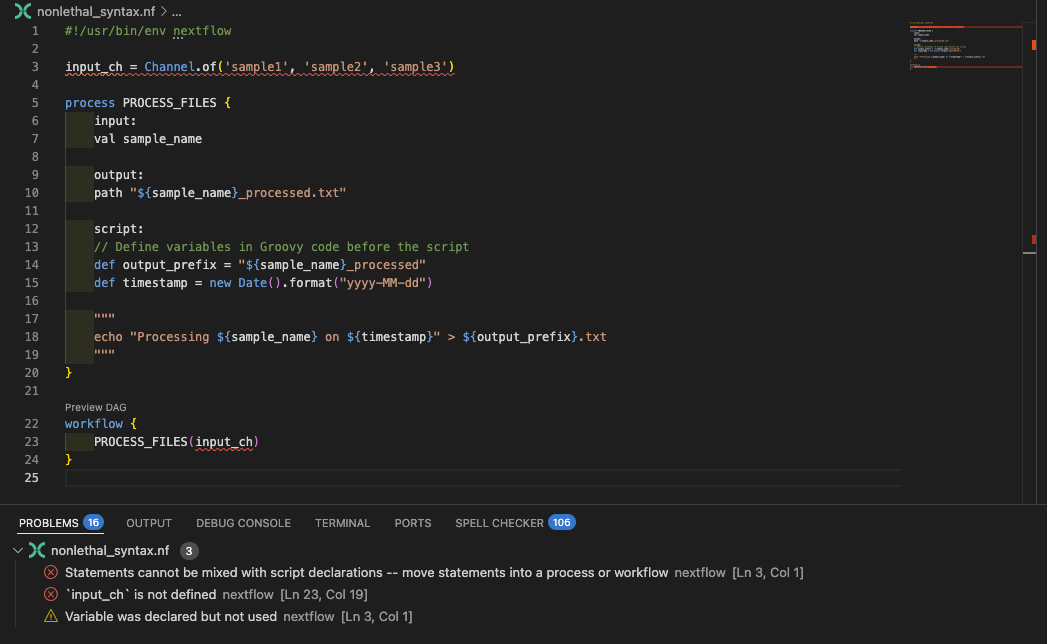
कोड ठीक करो
Channel definition को workflow block के अंदर ले जाओ:
पाइपलाइन चलाओ
Fix काम करता है यह पुष्टि करने के लिए वर्कफ़्लो फिर से चलाओ:
कमांड आउटपुट
अपने input channels को workflow block के अंदर define रखो, और सामान्य रूप से extension द्वारा की गई किसी भी अन्य सिफारिश का पालन करो।
सारांश
तुम Nextflow error messages और IDE visual indicators का उपयोग करके syntax errors को व्यवस्थित रूप से पहचान और ठीक कर सकते हो। सामान्य syntax errors में missing braces, गलत process keywords, undefined variables, और Bash बनाम Nextflow variables का अनुचित उपयोग शामिल हैं। VSCode extension इनमें से कई को runtime से पहले पकड़ने में मदद करता है। इन syntax debugging skills के साथ, तुम सबसे सामान्य Nextflow syntax errors को जल्दी हल कर पाओगे और अधिक जटिल runtime समस्याओं से निपटने के लिए आगे बढ़ पाओगे।
आगे क्या है?
अधिक जटिल channel structure errors को debug करना सीखो जो तब भी होती हैं जब syntax सही हो।
2. Channel Structure Errors
Channel structure errors syntax errors से अधिक सूक्ष्म होती हैं क्योंकि कोड syntactically सही होता है, लेकिन data shapes वह नहीं होते जो processes अपेक्षित करती हैं। Nextflow पाइपलाइन चलाने की कोशिश करेगा, लेकिन पा सकता है कि inputs की संख्या उसकी अपेक्षा से मेल नहीं खाती और fail हो जाएगा। ये errors आमतौर पर केवल runtime पर दिखाई देती हैं और तुम्हारे वर्कफ़्लो से गुजरने वाले data की समझ की आवश्यकता होती है।
.view() के साथ Channels को Debug करना
इस section में, याद रखो कि तुम अपने वर्कफ़्लो में किसी भी बिंदु पर channel content inspect करने के लिए .view() operator का उपयोग कर सकते हो। यह channel structure समस्याओं को समझने के लिए सबसे शक्तिशाली debugging tools में से एक है। हम section 2.4 में इस तकनीक को विस्तार से explore करेंगे, लेकिन examples के माध्यम से काम करते समय इसका उपयोग करने के लिए स्वतंत्र महसूस करो।
2.1. Input Channels की गलत संख्या
यह error तब होती है जब तुम एक process की अपेक्षा से अलग संख्या में channels pass करते हो।
पाइपलाइन चलाओ
कमांड आउटपुट
N E X T F L O W   ~  version 25.10.2

Launching `bad_number_inputs.nf` [happy_swartz] DSL2 - revision: d83e58dcd3

Error bad_number_inputs.nf:23:5: Incorrect number of call arguments, expected 1 but received 2
│  23 |     PROCESS_FILES(samples_ch, files_ch)
╰     |     ^^^^^^^^^^^^^^^^^^^^^^^^^^^^^^^^^^^

ERROR ~ Script compilation failed

 -- Check '.nextflow.log' file for details
कोड जाँचो
Error message स्पष्ट रूप से बताती है कि call को 1 argument अपेक्षित था लेकिन 2 मिले, और line 23 की ओर इशारा करती है। चलो bad_number_inputs.nf की जाँच करते हैं:
तुम mismatched PROCESS_FILES call देख सकते हो, जो multiple input channels supply कर रहा है जबकि process केवल एक define करता है। VSCode extension भी process call को लाल रंग में underline करेगा, और mouse over करने पर diagnostic message देगा:
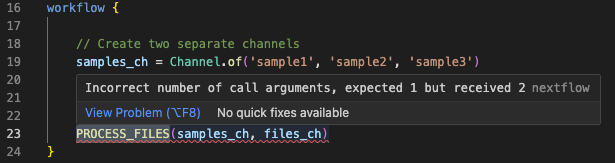
कोड ठीक करो
इस specific उदाहरण के लिए, process एक single channel अपेक्षित करता है और दूसरे channel की जरूरत नहीं है, इसलिए हम केवल samples_ch channel pass करके इसे ठीक कर सकते हैं:
पाइपलाइन चलाओ
कमांड आउटपुट
इस उदाहरण की तुलना में अधिक सामान्य रूप से, तुम एक process में additional inputs जोड़ सकते हो और workflow call को तदनुसार update करना भूल सकते हो, जो इस प्रकार की error का कारण बन सकता है। सौभाग्य से, यह समझने और ठीक करने में आसान errors में से एक है, क्योंकि error message mismatch के बारे में काफी स्पष्ट है।
2.2. Channel Exhaustion (Process अपेक्षा से कम बार चलता है)
कुछ channel structure errors बहुत अधिक सूक्ष्म होती हैं और कोई errors बिल्कुल नहीं produce करती हैं। इनमें से सबसे सामान्य शायद वह challenge है जो नए Nextflow users को यह समझने में होती है कि queue channels exhausted हो सकते हैं और items खत्म हो सकते हैं, जिसका अर्थ है कि वर्कफ़्लो समय से पहले समाप्त हो जाता है।
पाइपलाइन चलाओ
कमांड आउटपुट
 N E X T F L O W   ~  version 25.10.2

Launching `exhausted.nf` [extravagant_gauss] DSL2 - revision: 08cff7ba2a

executor >  local (1)
[bd/f61fff] PROCESS_FILES (1) [100%] 1 of 1 ✔
यह वर्कफ़्लो बिना error के पूरा होता है, लेकिन यह केवल एक ही नमूने को process करता है!
कोड जाँचो
चलो exhausted.nf की जाँच करते हैं यह देखने के लिए कि क्या यह सही है:
Process तीन बार के बजाय केवल एक बार चलता है क्योंकि reference_ch channel एक queue channel है जो पहले process execution के बाद exhausted हो जाता है। जब एक channel exhausted हो जाता है, तो पूरा process रुक जाता है, भले ही अन्य channels में अभी भी items हों।
यह एक सामान्य pattern है जहाँ तुम्हारे पास एक single reference फ़ाइल है जिसे multiple samples में reuse करने की जरूरत है। समाधान reference channel को एक value channel में convert करना है जिसे अनिश्चित काल तक reuse किया जा सकता है।
कोड ठीक करो
इसे address करने के कुछ तरीके हैं जो इस बात पर निर्भर करते हैं कि कितनी फ़ाइलें प्रभावित हैं।
Option 1: तुम्हारे पास एक single reference फ़ाइल है जिसे तुम बहुत बार reuse कर रहे हो। तुम simply एक value channel type बना सकते हो, जिसे बार-बार उपयोग किया जा सकता है। इसके तीन तरीके हैं:
1a channel.value() का उपयोग करो:
| exhausted.nf (fixed - Option 1a) | |
|---|---|
1b first() operator का उपयोग करो:
| exhausted.nf (fixed - Option 1b) | |
|---|---|
1c. collect() operator का उपयोग करो:
| exhausted.nf (fixed - Option 1c) | |
|---|---|
Option 2: अधिक जटिल परिदृश्यों में, शायद जहाँ sample channel में सभी samples के लिए multiple reference फ़ाइलें हैं, तुम combine operator का उपयोग करके एक नया channel बना सकते हो जो दोनों channels को tuples में combine करता है:
| exhausted.nf (fixed - Option 2) | |
|---|---|
.combine() operator दोनों channels का cartesian product generate करता है, इसलिए reference_ch में प्रत्येक item input_ch में प्रत्येक item के साथ pair होगा। यह process को reference का उपयोग करते हुए प्रत्येक sample के लिए चलने देता है।
इसके लिए process input को adjust करने की जरूरत है। हमारे उदाहरण में, process definition की शुरुआत को इस प्रकार adjust करना होगा:
| exhausted.nf (fixed - Option 2) | |
|---|---|
यह तरीका सभी स्थितियों में उपयुक्त नहीं हो सकता।
पाइपलाइन चलाओ
ऊपर दिए गए fixes में से एक try करो और वर्कफ़्लो फिर से चलाओ:
कमांड आउटपुट
अब तुम्हें केवल एक के बजाय तीनों samples process होते दिखने चाहिए।
2.3. गलत Channel Content Structure
जब वर्कफ़्लो एक निश्चित स्तर की जटिलता तक पहुँचते हैं, तो प्रत्येक channel की internal structures का track रखना थोड़ा मुश्किल हो सकता है, और लोग आमतौर पर process की अपेक्षाओं और channel में वास्तव में क्या है के बीच mismatches generate करते हैं। यह पहले चर्चा की गई समस्या से अधिक सूक्ष्म है, जहाँ channels की संख्या गलत थी। इस मामले में, तुम्हारे पास input channels की सही संख्या हो सकती है, लेकिन उनमें से एक या अधिक की internal structure process की अपेक्षाओं से मेल नहीं खाती।
पाइपलाइन चलाओ
कमांड आउटपुट
Launching `bad_channel_shape.nf` [hopeful_pare] DSL2 - revision: ffd66071a1

executor >  local (3)
executor >  local (3)
[3f/c2dcb3] PROCESS_FILES (3) [  0%] 0 of 3 ✘
ERROR ~ Error executing process > 'PROCESS_FILES (1)'

Caused by:
  Missing output file(s) `[sample1, file1.txt]_output.txt` expected by process `PROCESS_FILES (1)`


Command executed:

  echo "Processing [sample1, file1.txt]" > [sample1, file1.txt]_output.txt

Command exit status:
  0

Command output:
  (empty)

Work dir:
  /workspaces/training/side-quests/debugging/work/d6/1fb69d1d93300bbc9d42f1875b981e

Tip: when you have fixed the problem you can continue the execution adding the option `-resume` to the run command line

-- Check '.nextflow.log' file for details
कोड जाँचो
Error message में square brackets यहाँ clue प्रदान करते हैं - process tuple को एक single value के रूप में treat कर रहा है, जो हम नहीं चाहते। चलो bad_channel_shape.nf की जाँच करते हैं:
तुम देख सकते हो कि हम tuples से बना channel generate कर रहे हैं: ['sample1', 'file1.txt'], लेकिन process एक single value, val sample_name अपेक्षित करता है। Executed command दिखाता है कि process [sample3, file3.txt]_output.txt नाम की फ़ाइल बनाने की कोशिश कर रहा है, जो intended output नहीं है।
कोड ठीक करो
इसे ठीक करने के लिए, अगर process को दोनों inputs की जरूरत है तो हम process को tuple accept करने के लिए adjust कर सकते हैं:
| bad_channel_shape.nf | |
|---|---|
पाइपलाइन चलाओ
Solutions में से एक चुनो और वर्कफ़्लो फिर से चलाओ:
कमांड आउटपुट
2.4. Channel Debugging Techniques
Channel Inspection के लिए .view() का उपयोग
Channels के लिए सबसे शक्तिशाली debugging tool .view() operator है। .view() के साथ, तुम debugging में मदद के लिए सभी stages पर अपने channels की shape समझ सकते हो।
पाइपलाइन चलाओ
इसे action में देखने के लिए bad_channel_shape_viewed.nf चलाओ:
कमांड आउटपुट
N E X T F L O W   ~  version 25.10.2

Launching `bad_channel_shape_viewed.nf` [maniac_poisson] DSL2 - revision: b4f24dc9da

executor >  local (3)
[c0/db76b3] PROCESS_FILES (3) [100%] 3 of 3 ✔
Channel content: [sample1, file1.txt]
Channel content: [sample2, file2.txt]
Channel content: [sample3, file3.txt]
After mapping: sample1
After mapping: sample2
After mapping: sample3
कोड जाँचो
चलो bad_channel_shape_viewed.nf की जाँच करते हैं यह देखने के लिए कि .view() का उपयोग कैसे किया जाता है:
कोड ठीक करो
भविष्य में channel content समझने के लिए .view() operations का अत्यधिक उपयोग करने से बचाने के लिए, कुछ comments जोड़ना उचित है:
| bad_channel_shape_viewed.nf (with comments) | |
|---|---|
यह और अधिक महत्वपूर्ण हो जाएगा जैसे-जैसे तुम्हारे वर्कफ़्लो जटिलता में बढ़ते हैं और channel structure अधिक अपारदर्शी हो जाती है।
पाइपलाइन चलाओ
कमांड आउटपुट
N E X T F L O W   ~  version 25.10.2

Launching `bad_channel_shape_viewed.nf` [marvelous_koch] DSL2 - revision: 03e79cdbad

executor >  local (3)
[ff/d67cec] PROCESS_FILES (2) | 3 of 3 ✔
Channel content: [sample1, file1.txt]
Channel content: [sample2, file2.txt]
Channel content: [sample3, file3.txt]
After mapping: sample1
After mapping: sample2
After mapping: sample3
सारांश
Valid Nextflow syntax के साथ कई channel structure errors बनाई जा सकती हैं। तुम data flow समझकर, inspection के लिए .view() operators का उपयोग करके, और unexpected tuple structures को इंगित करने वाले square brackets जैसे error message patterns को पहचानकर channel structure errors को debug कर सकते हो।
आगे क्या है?
Process definitions द्वारा बनाई गई errors के बारे में जानो।
3. Process Structure Errors
Processes से संबंधित अधिकांश errors जो तुम encounter करोगे वे command बनाने में की गई गलतियों या underlying software से संबंधित समस्याओं से संबंधित होंगी। फिर भी, ऊपर channel समस्याओं की तरह, तुम process definition में ऐसी गलतियाँ कर सकते हो जो syntax errors के रूप में qualify नहीं होतीं, लेकिन run time पर errors का कारण बनेंगी।
3.1. Missing Output Files
Processes लिखते समय एक सामान्य error यह है कि कुछ ऐसा करना जो process की अपेक्षाओं और जो generate होता है के बीच mismatch पैदा करे।
पाइपलाइन चलाओ
कमांड आउटपुट
N E X T F L O W   ~  version 25.10.2

Launching `missing_output.nf` [zen_stone] DSL2 - revision: 37ff61f926

executor >  local (3)
executor >  local (3)
[fd/2642e9] process > PROCESS_FILES (2) [ 66%] 2 of 3, failed: 2
ERROR ~ Error executing process > 'PROCESS_FILES (3)'

Caused by:
  Missing output file(s) `sample3.txt` expected by process `PROCESS_FILES (3)`


Command executed:

  echo "Processing sample3" > sample3_output.txt

Command exit status:
  0

Command output:
  (empty)

Work dir:
  /workspaces/training/side-quests/debugging/work/02/9604d49fb8200a74d737c72a6c98ed

Tip: when you have fixed the problem you can continue the execution adding the option `-resume` to the run command line

-- Check '.nextflow.log' file for details
कोड जाँचो
Error message इंगित करती है कि process sample3.txt नाम की output फ़ाइल produce करने की अपेक्षा करता था, लेकिन script वास्तव में sample3_output.txt बनाता है। चलो missing_output.nf में process definition की जाँच करते हैं:
| missing_output.nf | |
|---|---|
तुम देख सकते हो कि output: block में output file name और script में उपयोग किए गए के बीच mismatch है। यह mismatch process को fail करता है। अगर तुम्हें इस प्रकार की error मिलती है, तो वापस जाओ और जाँचो कि outputs तुम्हारी process definition और तुम्हारे output block के बीच match करते हैं।
अगर समस्या अभी भी स्पष्ट नहीं है, तो वास्तव में बनाई गई output files की पहचान करने के लिए work directory की जाँच करो:
इस उदाहरण के लिए यह हमें highlight करेगा कि हमारी output: definition के विपरीत, output file name में एक _output suffix शामिल किया जा रहा है।
कोड ठीक करो
Output filename को consistent बनाकर mismatch ठीक करो:
पाइपलाइन चलाओ
कमांड आउटपुट
3.2. Missing software
Errors का एक और वर्ग software provisioning में गलतियों के कारण होता है। missing_software.nf एक syntactically valid वर्कफ़्लो है, लेकिन यह cowpy command provide करने के लिए कुछ external software पर निर्भर करता है।
पाइपलाइन चलाओ
कमांड आउटपुट
ERROR ~ Error executing process > 'PROCESS_FILES (3)'

Caused by:
  Process `PROCESS_FILES (3)` terminated with an error exit status (127)


Command executed:

  cowpy sample3 > sample3_output.txt

Command exit status:
  127

Command output:
  (empty)

Command error:
  .command.sh: line 2: cowpy: command not found

Work dir:
  /workspaces/training/side-quests/debugging/work/82/42a5bfb60c9c6ee63ebdbc2d51aa6e

Tip: you can try to figure out what's wrong by changing to the process work directory and showing the script file named `.command.sh`

-- Check '.nextflow.log' file for details
Process के पास वह command नहीं है जो हम specify कर रहे हैं। कभी-कभी यह इसलिए होता है क्योंकि एक script वर्कफ़्लो bin डायरेक्टरी में present है, लेकिन executable नहीं बनाया गया है। अन्य बार यह इसलिए होता है क्योंकि software उस container या environment में install नहीं है जहाँ वर्कफ़्लो चल रहा है।
कोड जाँचो
उस 127 exit code पर ध्यान दो - यह तुम्हें बिल्कुल समस्या बताता है। चलो missing_software.nf की जाँच करते हैं:
| missing_software.nf | |
|---|---|
कोड ठीक करो
हम यहाँ थोड़े dishonest रहे हैं, और वास्तव में कोड में कुछ भी गलत नहीं है। हमें बस process को इस तरह चलाने के लिए आवश्यक configuration specify करनी है कि उसके पास प्रश्न में command तक access हो। इस मामले में process में एक container definition है, इसलिए हमें बस Docker enabled के साथ वर्कफ़्लो चलाना है।
पाइपलाइन चलाओ
हमने तुम्हारे लिए nextflow.config में एक Docker profile सेट किया है, इसलिए तुम वर्कफ़्लो इस तरह चला सकते हो:
कमांड आउटपुट
नोट
Nextflow containers का उपयोग कैसे करता है इसके बारे में अधिक जानने के लिए, Hello Nextflow देखो
3.3. गलत resource configuration
Production उपयोग में, तुम अपने processes पर resources configure करोगे। उदाहरण के लिए memory तुम्हारे process के लिए उपलब्ध memory की maximum मात्रा define करता है, और अगर process उससे अधिक हो जाता है, तो तुम्हारा scheduler आमतौर पर process को kill कर देगा और 137 का exit code return करेगा। हम यहाँ वह demonstrate नहीं कर सकते क्योंकि हम local executor का उपयोग कर रहे हैं, लेकिन हम time के साथ कुछ similar दिखा सकते हैं।
पाइपलाइन चलाओ
bad_resources.nf में 1 millisecond के unrealistic time bound के साथ process configuration है:
कमांड आउटपुट
N E X T F L O W   ~  version 25.10.2

Launching `bad_resources.nf` [disturbed_elion] DSL2 - revision: 27d2066e86

executor >  local (3)
[c0/ded8e1] PROCESS_FILES (3) | 0 of 3 ✘
ERROR ~ Error executing process > 'PROCESS_FILES (2)'

Caused by:
  Process exceeded running time limit (1ms)

Command executed:

  cowpy sample2 > sample2_output.txt

Command exit status:
  -

Command output:
  (empty)

Work dir:
  /workspaces/training/side-quests/debugging/work/53/f0a4cc56d6b3dc2a6754ff326f1349

Container:
  community.wave.seqera.io/library/cowpy:1.1.5--3db457ae1977a273

Tip: you can replicate the issue by changing to the process work dir and entering the command `bash .command.run`

 -- Check '.nextflow.log' file for details
कोड जाँचो
चलो bad_resources.nf की जाँच करते हैं:
| bad_resources.nf | |
|---|---|
हम जानते हैं कि process एक second से अधिक समय लेगा (हमने यह सुनिश्चित करने के लिए एक sleep जोड़ा है), लेकिन process 1 millisecond के बाद timeout होने के लिए set है। किसी ने अपनी configuration के साथ थोड़ा unrealistic हो गया!
कोड ठीक करो
Time limit को एक realistic value तक बढ़ाओ:
| bad_resources.nf | |
|---|---|
पाइपलाइन चलाओ
कमांड आउटपुट
अगर तुम अपने error messages ध्यान से पढ़ते हो तो इस तरह की failures तुम्हें ज्यादा देर तक परेशान नहीं करेंगी। लेकिन सुनिश्चित करो कि तुम उन commands की resource requirements समझते हो जो तुम चला रहे हो ताकि तुम अपने resource directives को उचित रूप से configure कर सको।
3.4. Process Debugging Techniques
जब processes fail होती हैं या अप्रत्याशित रूप से behave करती हैं, तो तुम्हें यह investigate करने के लिए व्यवस्थित techniques की जरूरत है कि क्या गलत हुआ। Work directory में process execution को debug करने के लिए सभी जानकारी होती है।
Work Directory Inspection का उपयोग
Processes के लिए सबसे शक्तिशाली debugging tool work directory की जाँच करना है। जब एक process fail होती है, Nextflow उस specific process execution के लिए एक work directory बनाता है जिसमें यह समझने के लिए सभी फ़ाइलें होती हैं कि क्या हुआ।
पाइपलाइन चलाओ
Work directory inspection demonstrate करने के लिए पहले के missing_output.nf उदाहरण का उपयोग करते हैं (अगर जरूरत हो तो output naming mismatch फिर से generate करो):
कमांड आउटपुट
N E X T F L O W   ~  version 25.10.2

Launching `missing_output.nf` [irreverent_payne] DSL2 - revision: 3d5117f7e2

executor >  local (3)
[5d/d544a4] PROCESS_FILES (2) | 0 of 3 ✘
ERROR ~ Error executing process > 'PROCESS_FILES (1)'

Caused by:
  Missing output file(s) `sample1.txt` expected by process `PROCESS_FILES (1)`

Command executed:

  echo "Processing sample1" > sample1_output.txt

Command exit status:
  0

Command output:
  (empty)

Work dir:
  /workspaces/training/side-quests/debugging/work/1e/2011154d0b0f001cd383d7364b5244

Tip: you can replicate the issue by changing to the process work dir and entering the command `bash .command.run`

 -- Check '.nextflow.log' file for details
Work directory जाँचो
जब तुम्हें यह error मिलती है, तो work directory में सभी debugging जानकारी होती है। Error message से work directory path ढूंढो और उसकी contents की जाँच करो:
फिर तुम key files की जाँच कर सकते हो:
Command Script जाँचो
.command.sh फ़ाइल दिखाती है कि exactly कौन सा command execute किया गया था:
यह reveal करता है:
- Variable substitution: क्या Nextflow variables properly expand हुए
- File paths: क्या input files correctly located थीं
- Command structure: क्या script syntax सही है
देखने के लिए सामान्य समस्याएँ:
- Missing quotes: Spaces वाले variables को proper quoting की जरूरत है
- Wrong file paths: Input files जो exist नहीं करतीं या wrong locations में हैं
- Incorrect variable names: Variable references में typos
- Missing environment setup: Commands जो specific environments पर निर्भर करती हैं
Error Output जाँचो
.command.err फ़ाइल में actual error messages होती हैं:
यह फ़ाइल दिखाएगी:
- Exit codes: 127 (command not found), 137 (killed), आदि
- Permission errors: File access समस्याएँ
- Software errors: Application-specific error messages
- Resource errors: Memory/time limit exceeded
Standard Output जाँचो
.command.out फ़ाइल दिखाती है कि तुम्हारे command ने क्या produce किया:
यह verify करने में मदद करता है:
- Expected output: क्या command ने सही results produce किए
- Partial execution: क्या command शुरू हुआ लेकिन बीच में fail हो गया
- Debug information: तुम्हारे script से कोई diagnostic output
Exit Code जाँचो
.exitcode फ़ाइल में process का exit code होता है:
सामान्य exit codes और उनके अर्थ:
- Exit code 127: Command not found - software installation जाँचो
- Exit code 137: Process killed - memory/time limits जाँचो
File Existence जाँचो
जब processes missing output files के कारण fail होती हैं, तो जाँचो कि वास्तव में कौन सी files बनाई गई थीं:
यह identify करने में मदद करता है:
- File naming mismatches: Output files जिनके नाम अपेक्षित से अलग हैं
- Permission issues: Files जो बनाई नहीं जा सकीं
- Path problems: Files जो wrong directories में बनाई गईं
हमारे पहले के उदाहरण में, इसने हमें confirm किया कि जबकि हमारी अपेक्षित sample3.txt present नहीं थी, sample3_output.txt थी:
सारांश
Process debugging के लिए work directories की जाँच करना जरूरी है यह समझने के लिए कि क्या गलत हुआ। Key files में .command.sh (executed script), .command.err (error messages), और .command.out (standard output) शामिल हैं। Exit codes जैसे 127 (command not found) और 137 (process killed) failure के प्रकार के बारे में तत्काल diagnostic clues प्रदान करते हैं।
आगे क्या है?
Nextflow के built-in debugging tools और troubleshooting के व्यवस्थित तरीकों के बारे में जानो।
4. Built-in Debugging Tools और Advanced Techniques
Nextflow workflow execution को debug और analyze करने के लिए कई शक्तिशाली built-in tools प्रदान करता है। ये tools तुम्हें यह समझने में मदद करते हैं कि क्या गलत हुआ, कहाँ गलत हुआ, और इसे कुशलतापूर्वक कैसे ठीक किया जाए।
4.1. Real-time Process Output
कभी-कभी तुम्हें देखना होता है कि running processes के अंदर क्या हो रहा है। तुम real-time process output enable कर सकते हो, जो तुम्हें दिखाता है कि प्रत्येक कार्य execute होते समय exactly क्या कर रहा है।
पाइपलाइन चलाओ
हमारे पहले के examples से bad_channel_shape_viewed.nf ने .view() का उपयोग करके channel content print किया, लेकिन हम process के अंदर से variables echo करने के लिए debug directive का भी उपयोग कर सकते हैं, जिसे हम bad_channel_shape_viewed_debug.nf में demonstrate करते हैं। वर्कफ़्लो चलाओ:
कमांड आउटपुट
N E X T F L O W   ~  version 25.10.2

Launching `bad_channel_shape_viewed_debug.nf` [agitated_crick] DSL2 - revision: ea3676d9ec

executor >  local (3)
[c6/2dac51] process > PROCESS_FILES (3) [100%] 3 of 3 ✔
Channel content: [sample1, file1.txt]
Channel content: [sample2, file2.txt]
Channel content: [sample3, file3.txt]
After mapping: sample1
After mapping: sample2
After mapping: sample3
Sample name inside process is sample2

Sample name inside process is sample1

Sample name inside process is sample3
कोड जाँचो
चलो bad_channel_shape_viewed_debug.nf की जाँच करते हैं यह देखने के लिए कि debug directive कैसे काम करता है:
| bad_channel_shape_viewed_debug.nf | |
|---|---|
debug directive एक process के environment को समझने का एक quick और convenient तरीका हो सकता है।
4.2. Preview Mode
कभी-कभी तुम किसी भी process के चलने से पहले समस्याओं को पकड़ना चाहते हो। Nextflow इस प्रकार की proactive debugging के लिए एक flag प्रदान करता है: -preview।
पाइपलाइन चलाओ
Preview mode तुम्हें commands execute किए बिना workflow logic test करने देता है। यह actual commands चलाए बिना तुम्हारे वर्कफ़्लो की structure जाँचने और यह सुनिश्चित करने के लिए काफी उपयोगी हो सकता है कि processes सही तरीके से connected हैं।
नोट
अगर तुमने पहले bad_syntax.nf ठीक किया था, तो यह command चलाने से पहले script block के बाद closing brace हटाकर syntax error फिर से introduce करो।
यह command चलाओ:
कमांड आउटपुट
Preview mode किसी भी process को चलाए बिना syntax errors को जल्दी पकड़ने के लिए विशेष रूप से उपयोगी है। यह execution से पहले workflow structure और process connections को validate करता है।
4.3. Logic Testing के लिए Stub Running
कभी-कभी errors debug करना मुश्किल होता है क्योंकि commands बहुत लंबा समय लेती हैं, special software की जरूरत होती है, या जटिल कारणों से fail होती हैं। Stub running तुम्हें actual commands execute किए बिना workflow logic test करने देता है।
पाइपलाइन चलाओ
जब तुम एक Nextflow process develop कर रहे हो, तो तुम stub directive का उपयोग करके 'dummy' commands define कर सकते हो जो real command चलाए बिना सही form के outputs generate करती हैं। यह तरीका विशेष रूप से valuable है जब तुम actual software की जटिलताओं से निपटने से पहले यह verify करना चाहते हो कि तुम्हारा workflow logic सही है।
उदाहरण के लिए, याद करो हमारा missing_software.nf? वह जहाँ हमारे पास missing software था जिसने वर्कफ़्लो को तब तक चलने से रोका जब तक हमने -profile docker नहीं जोड़ा? missing_software_with_stub.nf एक बहुत similar वर्कफ़्लो है। अगर हम इसे उसी तरह चलाते हैं, तो हम वही error generate करेंगे:
कमांड आउटपुट
ERROR ~ Error executing process > 'PROCESS_FILES (3)'

Caused by:
  Process `PROCESS_FILES (3)` terminated with an error exit status (127)


Command executed:

  cowpy sample3 > sample3_output.txt

Command exit status:
  127

Command output:
  (empty)

Command error:
  .command.sh: line 2: cowpy: command not found

Work dir:
  /workspaces/training/side-quests/debugging/work/82/42a5bfb60c9c6ee63ebdbc2d51aa6e

Tip: you can try to figure out what's wrong by changing to the process work directory and showing the script file named `.command.sh`

-- Check '.nextflow.log' file for details
हालाँकि, यह वर्कफ़्लो -stub-run के साथ चलाने पर errors produce नहीं करेगा, docker profile के बिना भी:
कमांड आउटपुट
कोड जाँचो
चलो missing_software_with_stub.nf की जाँच करते हैं:
| missing_software.nf (with stub) | |
|---|---|
missing_software.nf की तुलना में, इस process में एक stub: directive है जो एक command specify करता है जिसे script: में specified के बजाय उपयोग किया जाएगा, इस event में कि Nextflow stub mode में चलाया जाए।
touch command जो हम यहाँ उपयोग कर रहे हैं वह किसी software या appropriate inputs पर निर्भर नहीं करती, और सभी situations में चलेगी, जिससे हम process internals की चिंता किए बिना workflow logic debug कर सकते हैं।
Stub running debug करने में मदद करता है:
- Channel structure और data flow
- Process connections और dependencies
- Parameter propagation
- Software dependencies के बिना workflow logic
4.4. व्यवस्थित Debugging Approach
अब जब तुमने individual debugging techniques सीखी हैं - trace files और work directories से लेकर preview mode, stub running, और resource monitoring तक - चलो उन्हें एक व्यवस्थित पद्धति में जोड़ते हैं। एक structured approach होने से तुम्हें जटिल errors से overwhelmed होने से बचाता है और यह सुनिश्चित करता है कि तुम महत्वपूर्ण clues miss नहीं करते।
यह पद्धति हमारे द्वारा cover किए गए सभी tools को एक efficient workflow में combine करती है:
चार-चरण Debugging Method:
Phase 1: Syntax Error Resolution (5 मिनट)
- VSCode या तुम्हारे IDE में red underlines जाँचो
- Syntax समस्याओं की पहचान करने के लिए
nextflow run workflow.nf -previewचलाओ - सभी syntax errors ठीक करो (missing braces, trailing commas, आदि)
- आगे बढ़ने से पहले सुनिश्चित करो कि वर्कफ़्लो successfully parse होता है
Phase 2: Quick Assessment (5 मिनट)
- Runtime error messages ध्यान से पढ़ो
- जाँचो कि यह runtime, logic, या resource error है
- Basic workflow logic test करने के लिए preview mode का उपयोग करो
Phase 3: Detailed Investigation (15-30 मिनट)
- Failed कार्य की work directory ढूंढो
- Log files की जाँच करो
- Channels inspect करने के लिए
.view()operators जोड़ो - Execution के बिना workflow logic test करने के लिए
-stub-runका उपयोग करो
Phase 4: Fix and Validate (15 मिनट)
- Minimal targeted fixes करो
- Resume के साथ test करो:
nextflow run workflow.nf -resume - Complete workflow execution verify करो
Efficient Debugging के लिए Resume का उपयोग
एक बार जब तुमने समस्या identify कर ली, तो तुम्हें अपने वर्कफ़्लो के successful parts को फिर से चलाने में समय बर्बाद किए बिना अपने fixes test करने का एक efficient तरीका चाहिए। Nextflow की -resume functionality debugging के लिए invaluable है।
अगर तुमने Hello Nextflow के माध्यम से काम किया है तो तुम -resume से मिले होगे, और यह महत्वपूर्ण है कि तुम debugging करते समय इसका अच्छा उपयोग करो ताकि तुम्हारी problem process से पहले की processes चलने का इंतजार करते हुए समय बर्बाद न हो।
Resume debugging strategy:
- Failure तक वर्कफ़्लो चलाओ
- Failed कार्य के लिए work directory की जाँच करो
- Specific समस्या ठीक करो
- केवल fix test करने के लिए resume करो
- वर्कफ़्लो complete होने तक repeat करो
Debugging Configuration Profile
इस व्यवस्थित approach को और अधिक efficient बनाने के लिए, तुम एक dedicated debugging configuration बना सकते हो जो automatically उन सभी tools को enable करती है जिनकी तुम्हें जरूरत है:
| nextflow.config (debug profile) | |
|---|---|
फिर तुम इस profile enabled के साथ पाइपलाइन चला सकते हो:
यह profile real-time output enable करता है, work directories preserve करता है, और easier debugging के लिए parallelization limit करता है।
4.5. व्यावहारिक Debugging अभ्यास
अब व्यवस्थित debugging approach को practice में लगाने का समय है। buggy_workflow.nf वर्कफ़्लो में कई सामान्य errors हैं जो real-world development में तुम्हें मिलने वाली समस्याओं के प्रकारों को represent करती हैं।
अभ्यास
buggy_workflow.nf में सभी errors identify और fix करने के लिए व्यवस्थित debugging approach का उपयोग करो। यह वर्कफ़्लो एक CSV फ़ाइल से sample data process करने की कोशिश करता है लेकिन इसमें सामान्य debugging scenarios को represent करने वाले multiple intentional bugs हैं।
पहली error देखने के लिए वर्कफ़्लो चलाकर शुरू करो:
कमांड आउटपुट
N E X T F L O W   ~  version 25.10.2

Launching `buggy_workflow.nf` [wise_ramanujan] DSL2 - revision: d51a8e83fd

ERROR ~ Range [11, 12) out of bounds for length 11

 -- Check '.nextflow.log' file for details
यह cryptic error params{} block में line 11-12 के आसपास एक parsing समस्या इंगित करती है। v2 parser structural समस्याओं को जल्दी पकड़ता है।
तुमने जो चार-चरण debugging method सीखी है उसे apply करो:
Phase 1: Syntax Error Resolution
- VSCode या तुम्हारे IDE में red underlines जाँचो
- Syntax समस्याओं की पहचान करने के लिए nextflow run workflow.nf -preview चलाओ
- सभी syntax errors ठीक करो (missing braces, trailing commas, आदि)
- आगे बढ़ने से पहले सुनिश्चित करो कि वर्कफ़्लो successfully parse होता है
Phase 2: Quick Assessment
- Runtime error messages ध्यान से पढ़ो
- पहचानो कि errors runtime, logic, या resource-related हैं
- Basic workflow logic test करने के लिए -preview mode का उपयोग करो
Phase 3: Detailed Investigation
- Failed कार्यों के लिए work directories की जाँच करो
- Channels inspect करने के लिए .view() operators जोड़ो
- Work directories में log files जाँचो
- Execution के बिना workflow logic test करने के लिए -stub-run का उपयोग करो
Phase 4: Fix and Validate
- Targeted fixes करो
- Fixes efficiently test करने के लिए -resume का उपयोग करो
- Complete workflow execution verify करो
तुम्हारे पास उपलब्ध Debugging Tools:
# Syntax checking के लिए Preview mode
nextflow run buggy_workflow.nf -preview

# Detailed output के लिए Debug profile
nextflow run buggy_workflow.nf -profile debug

# Logic testing के लिए Stub running
nextflow run buggy_workflow.nf -stub-run

# Fixes के बाद Resume
nextflow run buggy_workflow.nf -resume
समाधान
buggy_workflow.nf में 9 या 10 distinct errors हैं (गिनने के तरीके पर निर्भर करते हुए) जो सभी major debugging categories को cover करती हैं। यहाँ प्रत्येक error और उसे कैसे ठीक करें का व्यवस्थित breakdown है।
चलो उन syntax errors से शुरू करते हैं:
Error 1: Syntax Error - Trailing Comma
Fix: Trailing comma हटाओError 2: Syntax Error - Missing Closing Brace
Error 3: Variable Name Error
Error 4: Undefined Variable Error
इस बिंदु पर वर्कफ़्लो चलेगा, लेकिन हमें अभी भी errors मिलेंगी (जैसे processFiles में Path value cannot be null), जो bad channel structure के कारण हैं।
Error 5: Channel Structure Error - Wrong Map Output
लेकिन यह ऊपर heavyProcess() चलाने के लिए हमारे fix को break करेगा, इसलिए हमें उस process को केवल sample IDs pass करने के लिए map का उपयोग करना होगा:
Error 6: heavyProcess के लिए Bad channel structure
अब हम थोड़ा आगे जाते हैं लेकिन No such variable: i के बारे में error मिलती है, क्योंकि हमने एक Bash variable escape नहीं किया।
Error 7: Bash Variable Escaping Error
अब हमें Process exceeded running time limit (1ms) मिलता है, इसलिए हम relevant process के लिए run time limit ठीक करते हैं:
Error 8: Resource Configuration Error
अगला हमारे पास resolve करने के लिए एक Missing output file(s) error है:
Error 9: Output File Name Mismatch
पहले दो processes चले, लेकिन तीसरा नहीं।
Error 10: Output File Name Mismatch
इसके साथ, पूरा वर्कफ़्लो चलना चाहिए।
पूरा Corrected Workflow:
Cover किए गए Error Categories:
- Syntax errors: Missing braces, trailing commas, undefined variables
- Channel structure errors: Wrong data shapes, undefined channels
- Process errors: Output file mismatches, variable escaping
- Resource errors: Unrealistic time limits
Key Debugging Lessons:
- Error messages ध्यान से पढ़ो - वे अक्सर सीधे समस्या की ओर इशारा करते हैं
- व्यवस्थित approaches का उपयोग करो - एक बार में एक error ठीक करो और
-resumeके साथ test करो - Data flow समझो - channel structure errors अक्सर सबसे सूक्ष्म होती हैं
- Work directories जाँचो - जब processes fail होती हैं, logs तुम्हें exactly बताते हैं कि क्या गलत हुआ
सारांश
इस side quest में, तुमने Nextflow वर्कफ़्लो को debug करने के लिए व्यवस्थित techniques का एक set सीखा है। अपने काम में इन techniques को apply करने से तुम अपने computer से लड़ने में कम समय बिताओगे, समस्याओं को तेजी से हल करोगे और भविष्य की समस्याओं से खुद को बचाओगे।
Key patterns
1. Syntax errors को कैसे identify और fix करें:
- Nextflow error messages interpret करना और समस्याओं को locate करना
- सामान्य syntax errors: missing braces, incorrect keywords, undefined variables
- Nextflow (Groovy) और Bash variables के बीच अंतर करना
- Early error detection के लिए VS Code extension features का उपयोग
// Missing brace - IDE में red underlines देखो
process FOO {
    script:
    """
    echo "hello"
    """
// } <-- गायब है!

// Wrong keyword
inputs:  // 'input:' होना चाहिए

// Undefined variable - Bash variables के लिए backslash से escape करो
echo "${undefined_var}"      // Nextflow variable (error अगर define नहीं है)
echo "\${bash_var}"          // Bash variable (escaped)
2. Channel structure समस्याओं को कैसे debug करें:
- Channel cardinality और exhaustion समस्याओं को समझना
- Channel content structure mismatches debug करना
- Channel inspection के लिए
.view()operators का उपयोग - Output में square brackets जैसे error patterns को पहचानना
// Channel content inspect करो
my_channel.view { "Content: $it" }

// Queue को value channel में convert करो (exhaustion रोकता है)
reference_ch = channel.value('ref.fa')
// या
reference_ch = channel.of('ref.fa').first()
3. Process execution समस्याओं को कैसे troubleshoot करें:
- Missing output file errors का निदान
- Exit codes समझना (missing software के लिए 127, memory समस्याओं के लिए 137)
- Work directories और command files की जाँच
- Resources को उचित रूप से configure करना
# Actually क्या execute हुआ जाँचो
cat work/ab/cdef12/.command.sh

# Error output जाँचो
cat work/ab/cdef12/.command.err

# Exit code 127 = command not found
# Exit code 137 = killed (memory/time limit)
4. Nextflow के built-in debugging tools का उपयोग कैसे करें:
- Preview mode और real-time debugging का उपयोग
- Logic testing के लिए stub running implement करना
- Efficient debugging cycles के लिए resume apply करना
- चार-चरण व्यवस्थित debugging methodology का पालन
Quick Debugging Reference
Syntax errors? → VSCode warnings जाँचो, nextflow run workflow.nf -preview चलाओ
Channel समस्याएँ? → Content inspect करने के लिए .view() का उपयोग करो: my_channel.view()
Process failures? → Work directory files जाँचो:
.command.sh- executed script.command.err- error messages.exitcode- exit status (127 = command not found, 137 = killed)
Mysterious behavior? → Workflow logic test करने के लिए -stub-run के साथ चलाओ
Fixes किए? → Testing में समय बचाने के लिए -resume का उपयोग करो: nextflow run workflow.nf -resume
अतिरिक्त संसाधन
- Nextflow troubleshooting guide: Official troubleshooting documentation
- Understanding Nextflow channels: Channel types और behavior में deep dive
- Process directives reference: सभी available process configuration options
- nf-test: Nextflow पाइपलाइन के लिए testing framework
- Nextflow Slack community: Community से मदद लो
Production वर्कफ़्लो के लिए, consider करो:
- Scale पर monitoring और debugging के लिए Seqera Platform सेट करना
- Reproducible software environments के लिए Wave containers का उपयोग
याद रखो: Effective debugging एक ऐसा कौशल है जो practice के साथ बेहतर होता है। यहाँ तुमने जो व्यवस्थित पद्धति और comprehensive toolkit हासिल की है वह तुम्हारी Nextflow development journey में तुम्हारी अच्छी सेवा करेगी।
आगे क्या है?
Side Quests के menu पर वापस जाओ या list में अगले topic पर जाने के लिए page के नीचे दाईं ओर button click करो।